




To begin, you must create a password for your account by following the steps below. This is a one-time procedure to activate your account and set your own unique password. Remember, if you need assistance, see the Help section at the bottom.
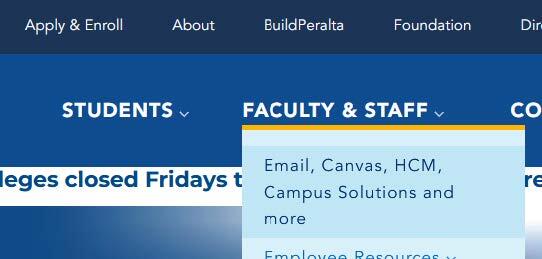
- Go to the "Faculty and Staff" menu at the top of the website and select "Email, Canvas, HCM, Campus Solutions and more"
- This screen may show your previous login to Microsoft Office 365 if you already have one. If that’s the case, click "Use another account". Otherwise, just skip to the next step.
(Note: If your browser automatically logs you in with your cc.peralta.edu student account, you will need to log out first, use a different browser, or use Incognito/Private mode)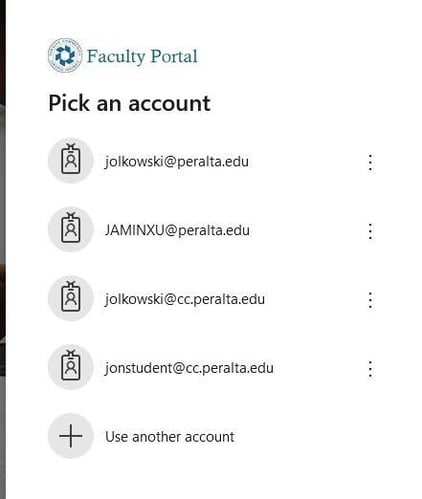
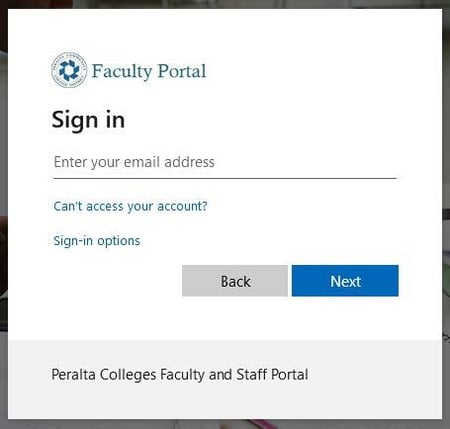
- Click on "Can’t access your account?"
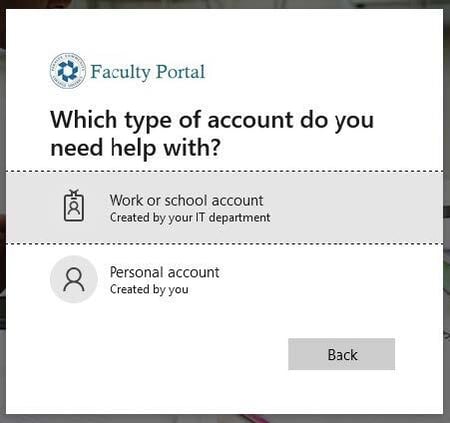
- Select "Work or school account"
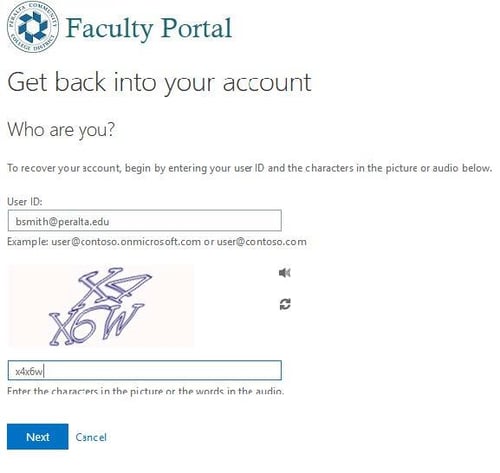
- Enter your new email address and complete the Captcha, then click "Next". (Note: your email address is not case-sensitive. BSMITH@peralta.edu is the same as bsmith@peralta.edu).
- You will be presented with one or more password reset verification options. The password reset is pre-populated with your phone number and email address we have on file for you.
(Note: If you no longer have access to both your phone and email address, see the "Where to Get Help" section at the bottom.)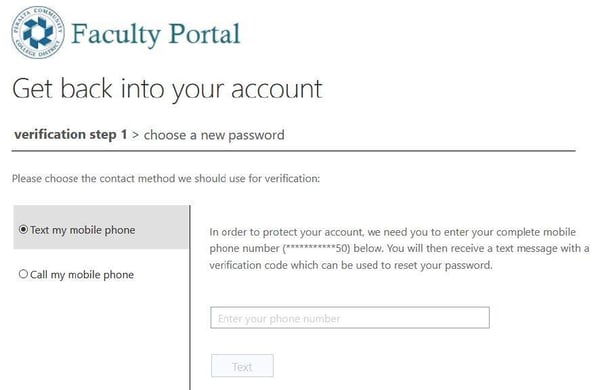
- Select your desired contact method, and a reset code will be sent to you.
- Next, you’ll be prompted to enter a new password. Passwords must:
- Be a minimum of eight (8) characters in length and no more than sixteen (16)
- Contain at least one (1) character from three (3) of the following categories:
- Uppercase letter (A-Z)
- Lowercase letter (a-z)
- Digit (0-9)
- Special character (~`!@#$%^&*()+=_-{}[]\|:;”’?/<>,.)
Example 1: The first concert you saw was Post Malone at The Shoreline in 2017. PostShoreline17
Example 2: Your pet’s name, her favorite food or place to sleep, separated by a dollar sign ($) Taco$Chicken or Taco$Balcony
DO NOT use common words like “Peralta”, “school”, “Summer”, etc. These will be automatically rejected.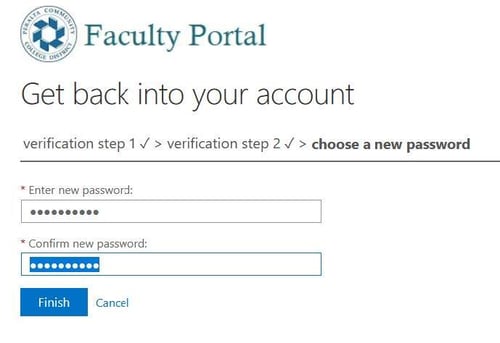
REMEMBER: You are responsible for your account. Do not share your password with anyone. IT staff will never ask you for your password. If you receive emails warning you that your account is going to expire or that you need to validate your account, these are fraudulent. When in doubt, contact the Helpdesk (contact information at the end of this document).
- Next, you’ll be prompted to enter a new password. Passwords must:
- Next, you must register for Multi-factor Authentication (often abbreviated ‘MFA’ or ‘2FA’). Click "Next".
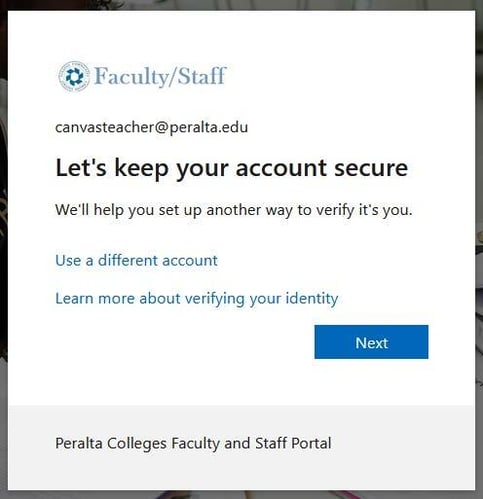
- There are three MFA methods available: Text, Voice Call, and Microsoft Authenticator. This page will only cover the simpler voice or text methods.
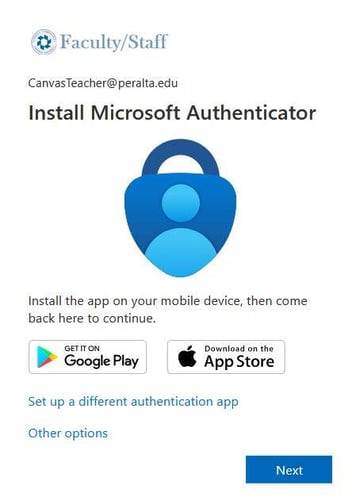
Microsoft Authenticator is the most secure method, but requires installing the app on your Apple iOS or Android phone or tablet. For detailed instructions for Microsoft Authenticator: Apple iOS or Android. - To configure Text or Voice Call authentication methods, click "Other Options, then "Phone".
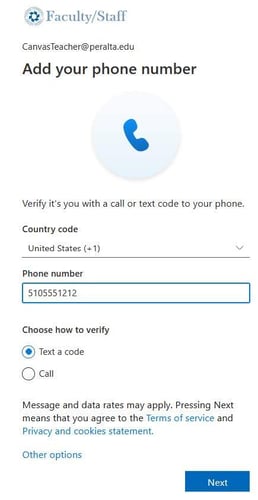
- Enter your phone number as shown below, then select either "Text a code" or "Call" (to receive a voice call).
- Follow the instructions depending on the method you chose.
- You can now log in to your Office 365 account.
For most student employees, paychecks will be available on the 15th of each month and will be viewable online at the same time. To view your paycheck:
- Go to the Peralta staff portal by clicking here or by going to myapps.microsoft.com, and log in with your new student employee account.
(Note: If your browser automatically logs you in with your cc.peralta.edu student account, you will need to log out first, use a different browser, or use Incognito/Private mode) - Click on the Human Capital Management icon.
- Click on the "Payroll" tile.
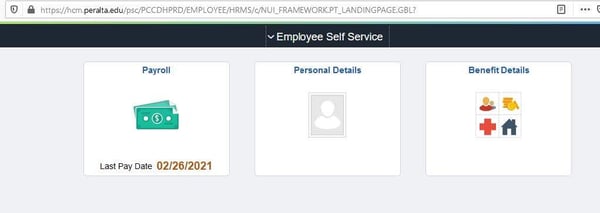
- Your most recent Payroll information appears.
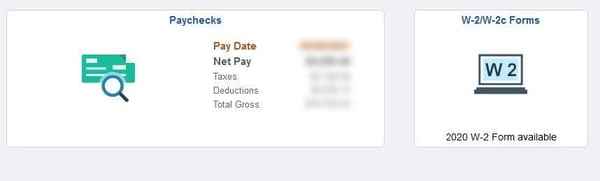
- You can also click the "Paychecks" tile to view more detailed paycheck information.
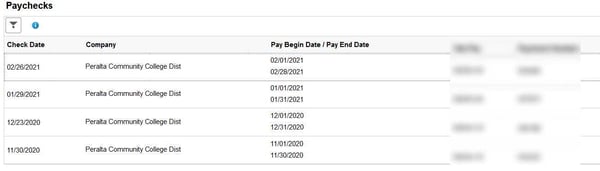
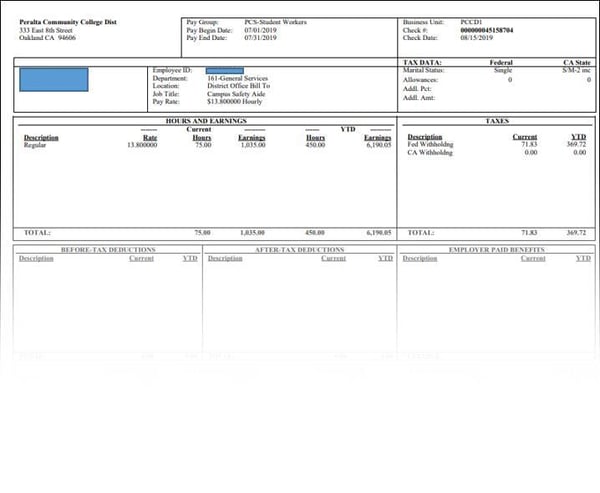
- If you click on any row, a PDF copy of that paycheck will appear.
Hours must be submitted by the last day of the calendar month in order to be paid by the 15th of the following month. (Note: If you miss the deadline for submitting your hours and have questions about when you will be paid, contact Payroll, or ask your manager to contact Payroll on your behalf. See the Help Section at the bottom of this document for contact information.)
Follow the instructions below, or click here to watch a short instructional video.
- Go to the Faculty & Staff portal by clicking here or by navigating to myapps.microsoft.com.
(Note: If your browser automatically logs you in with your cc.peralta.edu student account, you will need to log out first, use a different browser, or use Incognito/Private mode)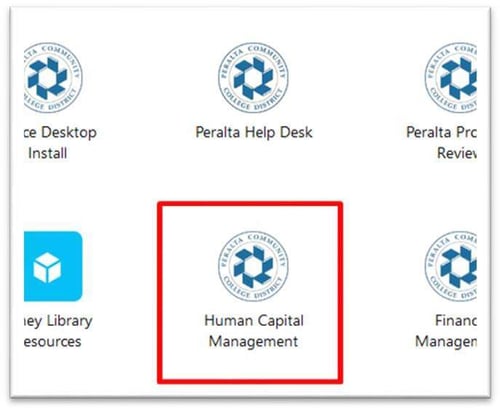
- Click on the "Human Capital Management" tile.
- From the Employee Self Service dashboard, click on the "Time" tile.
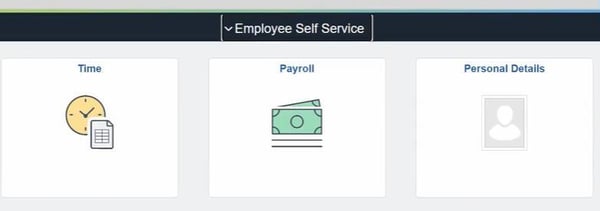
- Click on the "Enter Time" tile.
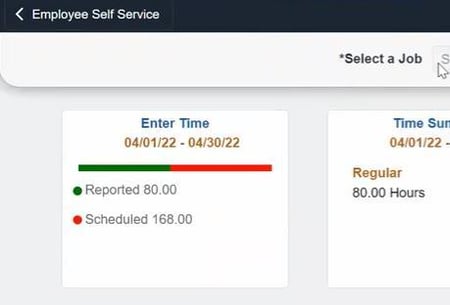
- The timesheet will appear for the current month and week.
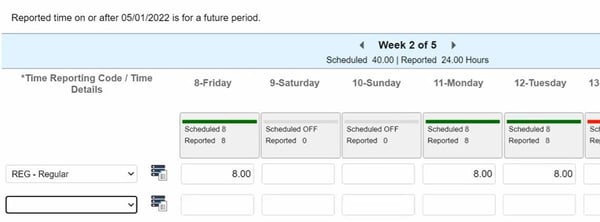
- Submitting Your Time
- On the left side, select the type of hours you are reporting. Most of the time, you’ll use REG – Regular hours. The other types are:
- REG - Regular hours
- SCH - Sick Leave Hourly
- C1H - COVID-19 Pay-Hourly (requires documentation)
- C7H - COVID-19 2/3 Pay Hourly (requires documentation)
- Enter the corresponding hours inside the box for the applicable day.
- If you have more than one type of hours to report (such as (REG) Regular and (SCH) Sick Leave), click on the "+" button on the right to insert a new row.
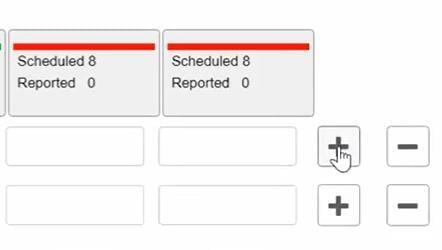
- Select the correct time code on the left and enter the hours for those days.
Example: You worked 8 regular hours on Friday, Monday, and Tuesday, but had Covid-related sick leave on Wednesday and Thursday.
- Click on "Apply Rules". This will validate and scan your timesheet for errors.
- Click on "Submit" to finish submitting your time.
- On the left side, select the type of hours you are reporting. Most of the time, you’ll use REG – Regular hours. The other types are:
- Your Employee ID is the same as your student ID. (studentid@cc.peralta.edu). Please have this number available when contacting Human Resources, Payroll or Information Technology for assistance.
- Your account will expire 30 days after the expected end date of your employment. If your account has expired unexpectedly, notify your supervisor or manager. They will need to contact Human Resources on your behalf.
- If your employment is extended (even in a new job/position), the end date will be updated automatically, and your account will remain active. If your employment was extended but your account is disabled, your manager must contact Human Resources and validate that your extension was processed.
For security reasons, IT will not re-activate your account until we receive approval from Human Resources. Additionally, IT cannot assist you with information regarding the status of your employment processing. Please direct inquiries to your manager/supervisor or Human Resources. - You must submit your time by the last day of the calendar month in order to be paid by the 15th of the following month.
- If you have questions or there are problems with your paycheck (Incorrect number of hours, a problem with tax withholding, etc.) notify your manager/supervisor or contact the Payroll Department.
- If you cannot log in to your account, contact the District IT helpdesk by emailing helpdesk@peralta.edu. Include your full name, a contact phone number and your Student/Employee ID.
To begin, you must create a password for your account using the steps below. This is a one-time procedure to activate your account and set your own unique password. Remember, if you need assistance, see the Help section at the bottom.
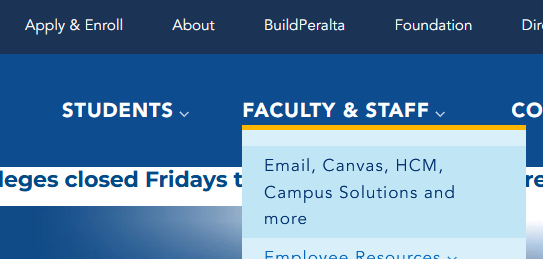
- Go to https://peralta.edu. Go to the Faculty and Staff menu and select the top link for Email, Canvas, etc.
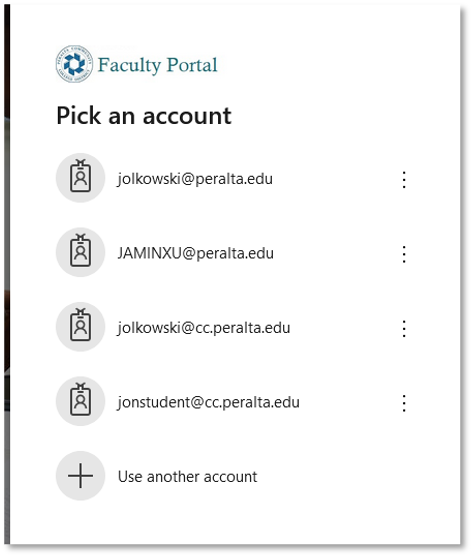
- This screen may show your previous login to Microsoft Office 365 if you already have one (such as with another school where you teach). If that’s the case, click Use another account. Otherwise, skip to the next step.
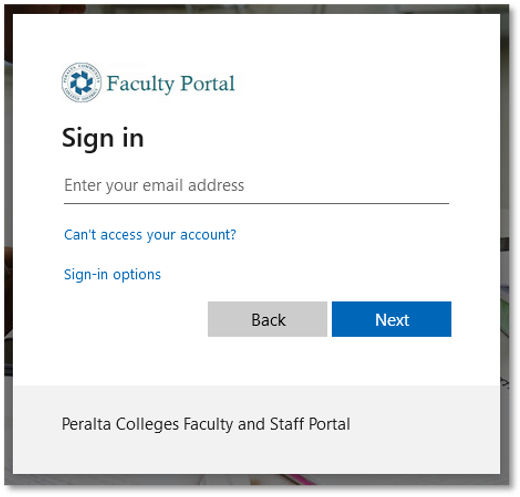
- Click on Can’t access your account?
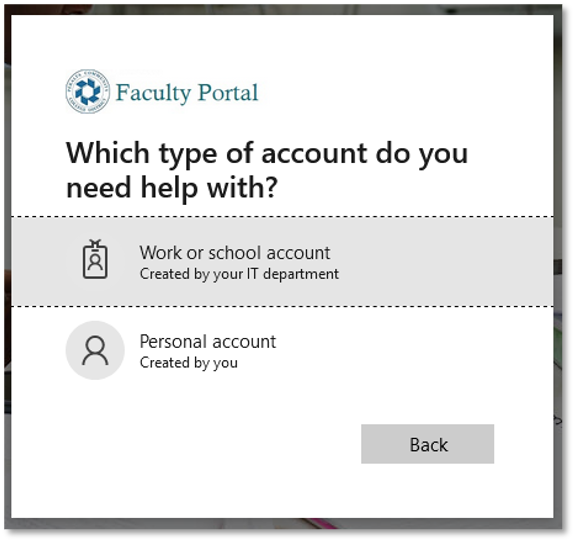
- Select Work or school account
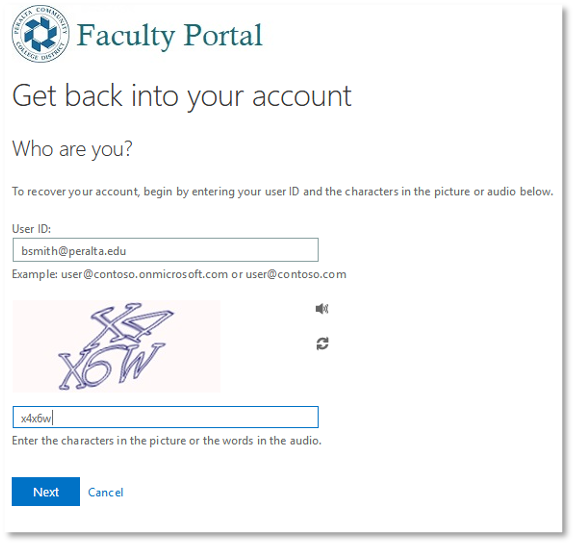
- Enter your new email address and complete the Captcha, then click Next. (Note: your email address is not case-sensitive. BSMITH@peralta.edu is the same as bsmith@peralta.edu).
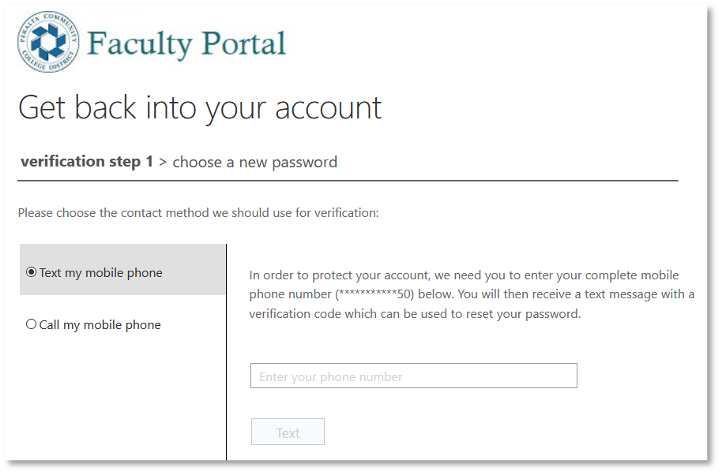
- You will be presented with one or more password reset verification options. The password reset is pre-populated with your phone number and email address we have on file for you.
(Note: If you no longer have access to both your phone and email address, see the Where to Get Help section at the bottom.) - Select your desired contact method and a reset code will be sent to you.
- Next you must register for Multi-factor Authentication (often abbreviated ‘MFA’ or ‘2FA’). Click Next.
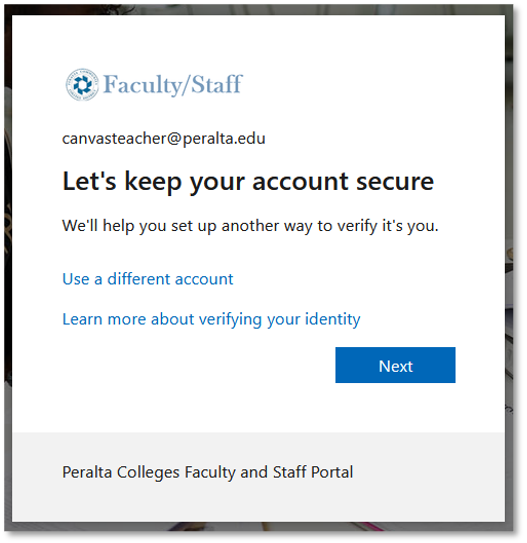
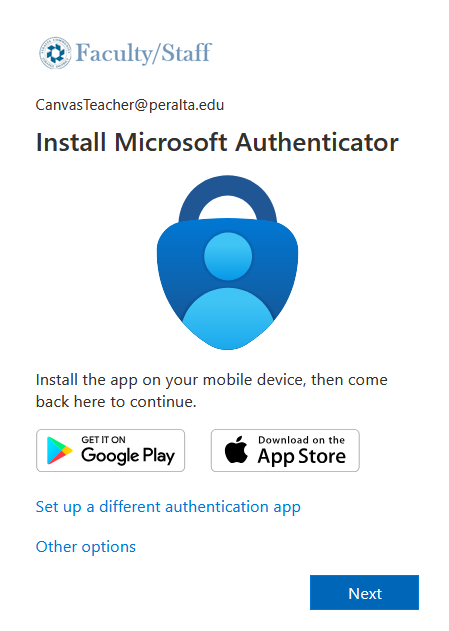
- There are three MFA methods available: Text, Voice Call and Microsoft Authenticator. This page will only cover the simpler voice or text methods.
Microsoft Authenticator is the most secure method but requires installing the app on your Apple iOS or Android phone or tablet. For detailed instructions for Microsoft Authenticator: Apple iOS or Android. - To configure Text or Voice Call authentication methods, click Other Options, then Phone.
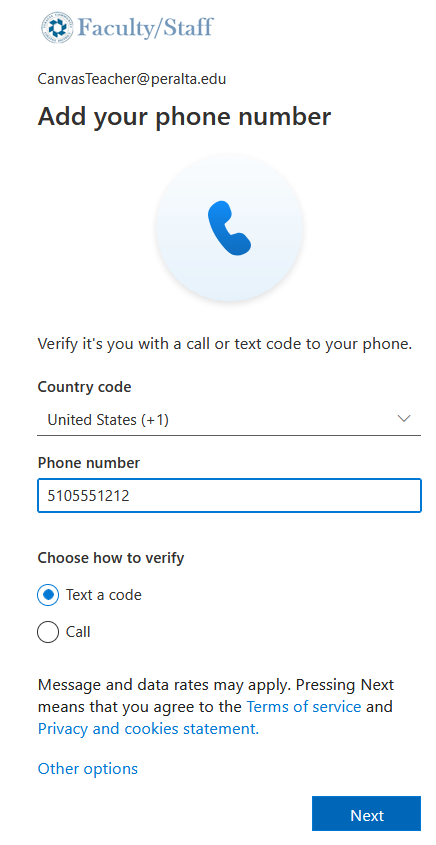
- Enter your phone number as shown below, then select either Text a code or Call (to receive a voice call).
- Follow the instructions depending on the method you chose.
- You can now log in to your Office 365 account.
(Note: If your browser automatically logs you in with your cc.peralta.edu student account or other instituation account, you will need to log out first, use a different browser, or use Incognito/Private mode)
Next you’ll be prompted to enter a new password. Passwords must:
- Be a minimum of eight (8) characters in length and no more than sixteen (16)
- Not contain common words such as part of your name, “Peralta”, and so on.
- Contain at least one (1) character from three (3) of the following categories:
- Uppercase letter (A-Z)
- Lowercase letter (a-z)
- Digit (0-9)
- Special character (~`!@#$%^&*()+=_-{}[]\|:;”’?/<>,.)
Tip: A good password is easy to remember but hard for others to guess. Here are some ideas:
Example 1: The first concert you saw was Post Malone at The Shoreline in 2017. PostShoreline17
Example 2: Your pet’s name, her favorite food or place to sleep, separated by a dollar sign ($) TacoCat$Chicken or TacoCat$Balcony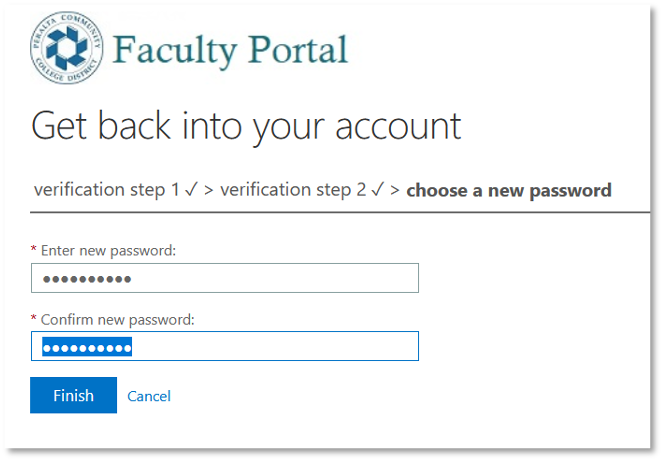
REMEMBER: You are responsible for your account. Do not share your password with anyone. IT staff will never ask you for your password. If you receive emails warning you that your account is going to expire or that you need to validate your account, these are fraudulent. When in doubt, contact the Helpdesk (contact information at the end of this document).
Campus Solutions (often abbreviated ‘CS’), is the Student Information System (‘SIS’) to access rosters, attendance, submit grades and other common functions. CS is part of a larger software called PeopleSoft, or sometimes Oracle, and they collectively manage Peralta’s core business operations. These include Human Resources, Purchasing/Finance, and others.
To access Campus Solutions:
- Log into your Faculty portal (https://myapps.microsoft.com)
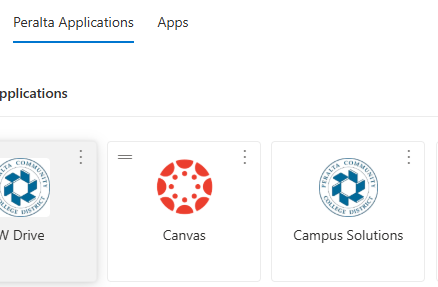
- Under the Peralta Applications tab, click on the tile Campus Solutions
To access information and training guides for CS:
- Log into your Faculty portal (https://myapps.microsoft.com)
- Click on the tile PeopleSoft Training